My PC Won't POST: A Comprehensive Guide to Troubleshooting No Display or Boot Issues
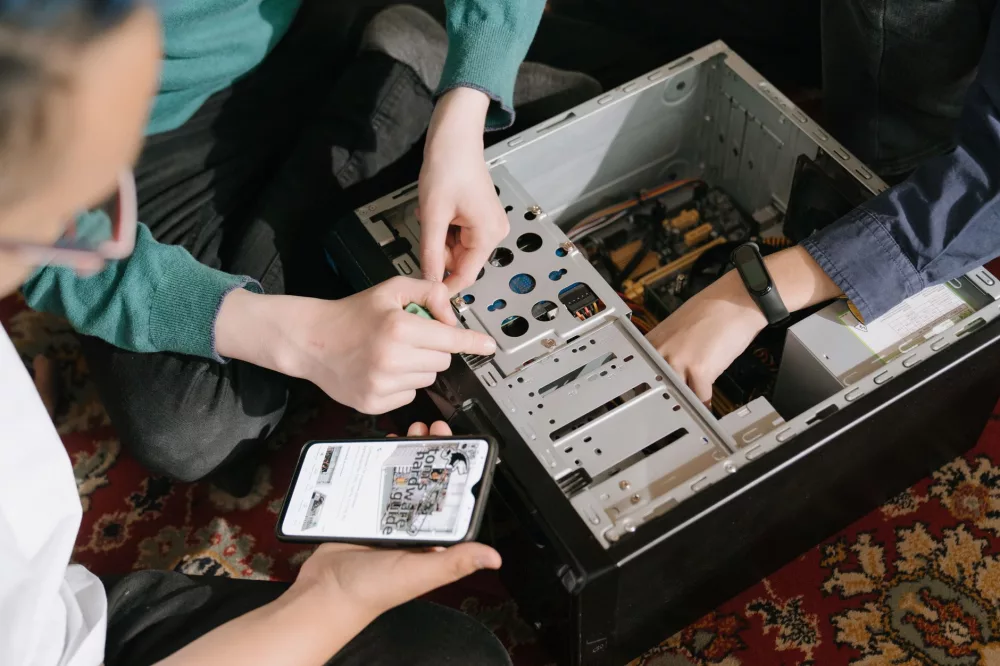
Ah, the dreaded 'PC won't POST' scenario. If you're reading this, chances are you've just pressed the power button, heard the fans spin up, maybe saw some RGB lights flash, but then... nothing. No display, no beep codes, just a silent, inert box that refuses to wake up. Trust me, I've been there many, many times. It's incredibly frustrating, whether you're a seasoned builder or a complete novice. But don't despair! Most of the time, this isn't a death sentence for your computer. It's usually a clear sign that something isn't quite right, and with a bit of methodical detective work, we can usually get to the bottom of it. I'm going to walk you through a detailed, step-by-step process to diagnose and hopefully fix your PC when it refuses to POST (Power-On Self-Test).
What Exactly Does 'No POST' Mean?
Before we jump into fixing things, let's quickly clarify what POST is. When you hit the power button, your computer's BIOS/UEFI firmware performs a series of self-tests. This includes checking if your CPU, RAM, graphics card, and other essential hardware components are present and functioning correctly. If everything checks out, the system will typically emit a single short beep (though many modern motherboards are silent) and then hand over control to the operating system loader. If it doesn't pass these tests, it won't boot into your OS, and often you won't even see a display. This is a 'no POST' situation. Sometimes, the motherboard might try to tell you what's wrong through a series of beeps or diagnostic LEDs.
Initial Checks: The Simple Stuff First
Before you start ripping your PC apart, let's cover the absolute basics. You'd be surprised how often a simple oversight causes a headache.
- Power Cycle Everything: This is a classic for a reason. Unplug your PC from the wall, press and hold the power button for about 15-30 seconds to drain any residual charge, and then plug it back in. Sometimes, this can reset a stubborn power supply or a minor glitch.
- Monitor Connection: Is your monitor plugged in? Is it plugged into the right port? If you have a dedicated graphics card, make sure your display cable (HDMI, DisplayPort, DVI, VGA) is connected to the GPU, not the motherboard's integrated graphics port. I've made this mistake myself more times than I care to admit!
- Monitor Input: Check your monitor's input source. Did it accidentally get switched to HDMI 1 when your PC is on DisplayPort?
- Peripherals: Disconnect all non-essential peripherals. This means unplugging everything except for the monitor, keyboard, and mouse. Sometimes a faulty USB device can prevent POST.
Listening for Beep Codes or Checking Diagnostic LEDs
Your motherboard might be trying to tell you what's wrong. Many motherboards have either:
- Speaker Beep Codes: If your motherboard has a small speaker attached, it might emit a series of beeps. These aren't random; they're diagnostic codes. For example, one long and two short beeps often indicate a graphics card issue. You'll need to consult your motherboard's manual to decipher what each sequence means.
- Diagnostic LEDs/Digital Display: Most modern motherboards come with a set of small LEDs (often labeled CPU, DRAM, VGA, BOOT) or a small alphanumeric display that shows POST codes. These lights will illuminate in sequence during POST, and if the system halts, one of them will stay lit, indicating the problematic component. This is super helpful!
Take note of any beeps or lit LEDs. This information is a huge clue.
The Core Components: Where Problems Often Lie
When a PC won't POST, the issue almost always boils down to one of these critical components:
- RAM (Random Access Memory)
- GPU (Graphics Processing Unit)
- CPU (Central Processing Unit)
- PSU (Power Supply Unit)
- Motherboard
Let's tackle them systematically.
1. RAM: The Most Common Culprit
RAM issues are incredibly frequent when a system refuses to POST. It's often the first place I start looking.
- Reseat the RAM: Power down, unplug everything. Open your PC case. Locate your RAM sticks. Push down on the small clips at each end of the RAM slot to release the stick, then pull it out. Gently push it back in until the clips snap into place on both sides. Make sure it's firmly seated. Sometimes, even a slight shift can cause problems.
- Test One Stick at a Time: If you have multiple RAM sticks, remove all but one. Try to boot. If it POSTs, try the next stick in the same slot. If it doesn't POST, try a different slot. This helps identify if a specific stick or a specific slot is faulty.
- Try Different Slots: If your motherboard has four RAM slots, say A1, A2, B1, B2, try a single stick in each slot individually. Sometimes a particular slot can go bad.
2. GPU: The Second Most Likely Suspect
Graphics cards can also be a significant cause of no POST issues, especially if you get a 'no signal' message on your monitor.
- Reseat the GPU: Just like RAM, a graphics card can become unseated. Power down, unplug. Unclip the retention mechanism at the end of the PCIe slot, and unscrew any mounting screws. Carefully pull out the GPU. Inspect the PCIe slot and the card's connector for dust. Reinsert it firmly until it clicks, and re-secure it with screws.
- Check Power Cables: Most modern GPUs require dedicated PCIe power cables from the PSU. Make absolutely sure these are correctly and securely plugged into the GPU. Sometimes, using two separate cables from the PSU instead of a single daisy-chained one can help with power delivery.
- Test with Integrated Graphics (if applicable): If your CPU has integrated graphics (e.g., Intel CPUs with an 'F' suffix usually don't, AMD 'G' series CPUs do), remove your dedicated GPU entirely. Plug your monitor into the motherboard's video output. If it POSTs, your GPU or its PCIe slot is likely the problem.
- Try a Different PCIe Slot: If your motherboard has multiple PCIe x16 slots, try moving your GPU to another one.
3. CPU: A Rarer, But More Serious Issue
CPU problems are less common but definitely happen. They're also a bit trickier to diagnose without a spare CPU.
- Check CPU Power: Ensure the 4-pin or 8-pin EPS (CPU power) cable from your PSU is securely connected to the motherboard. This is a common oversight during builds.
- Reseat the CPU: This is a delicate operation. If you're uncomfortable, proceed with caution or seek help. You'll need to remove your CPU cooler, unclip the CPU retention arm, and carefully lift the CPU out. Check for bent pins (on the CPU itself for AMD, or in the socket for Intel). Reinsert the CPU, making sure the alignment arrow on the CPU matches the arrow on the socket. Then reapply thermal paste and reattach the cooler.
4. PSU: The Heart of Your System
A failing power supply can cause all sorts of bizarre issues, including no POST.
- Check All Power Cables: Double-check the 24-pin ATX power cable to the motherboard and any CPU (EPS) and GPU (PCIe) power cables. Make sure they're fully seated at both the component end and the PSU end (if it's a modular PSU).
- PSU Switch: Is the switch on the back of the PSU (the one that looks like an 'I' and 'O') set to 'I' (on)? It sounds obvious, but you know how it is when you're troubleshooting!
- Test with a Known Good PSU: This is the most reliable way to rule out the PSU. If you have access to a spare, known-working PSU, try swapping it in. This can quickly confirm or deny if your current PSU is the culprit. Without a spare, it's harder to isolate definitively.
5. Motherboard: The Backbone
The motherboard acts as the central hub. If it's faulty, you're in a tough spot.
- Clear CMOS (Complementary Metal-Oxide-Semiconductor): This resets your BIOS settings to their factory defaults. Sometimes, an incorrect BIOS setting (like an overclock that's too aggressive) can prevent POST.
You can clear CMOS in a couple of ways:
- Jumper: Locate the 'CLR_CMOS' or 'JBAT1' jumper on your motherboard (consult your manual). With the PC unplugged, move the jumper from pins 1-2 to 2-3 for about 5-10 seconds, then move it back.
- Battery: Remove the small coin-cell battery (CR2032) from the motherboard for a few minutes (again, with the PC unplugged), then put it back in.
- Shorts: Look for any metal standoffs in your PC case that aren't actually supporting the motherboard. Sometimes an extra standoff can cause a short circuit. Also, check for loose screws or wires that might be touching the back of the motherboard.
- Minimal Boot Configuration: Remove everything that isn't absolutely essential. This means just the CPU, one stick of RAM, and the CPU cooler. Disconnect all storage drives, optical drives, front panel USBs, etc. If it POSTs in this minimal state, you can gradually add components back one by one to find the problem. This technique is often really effective.
- Test Outside the Case: If you're still stuck, consider taking the motherboard out of the case. Place it on a non-conductive surface (like its original box or a cardboard sheet). Connect only the CPU, CPU cooler, one RAM stick, and the PSU. Try to power it on by briefly touching the two power switch pins on the front panel header with a screwdriver. If it POSTs here, there might be a short in your case.
When All Else Fails
If you've gone through all these steps and your PC still won't POST, it's highly likely that you have a faulty component, probably the motherboard or the CPU itself. Without spare parts to swap in and test, diagnosing further can be incredibly difficult for a home user. At this point, I'd suggest taking it to a reputable PC repair shop, as they'll have the necessary diagnostic tools and spare parts to pinpoint the exact issue. They'll be able to tell you definitively if you need a new motherboard or CPU.
Remember, patience is absolutely key when troubleshooting. It can be a very tedious process, but taking your time and being methodical will increase your chances of success. Stay safe, always unplug your PC before opening it up, and good luck getting your rig back up and running!
Editorial Team
Senior staff writer & editor delivering comprehensive analysis, news reports, and detailed guides.