Supercharge Your System: Practical Steps to Make Your PC Blazing Fast Again
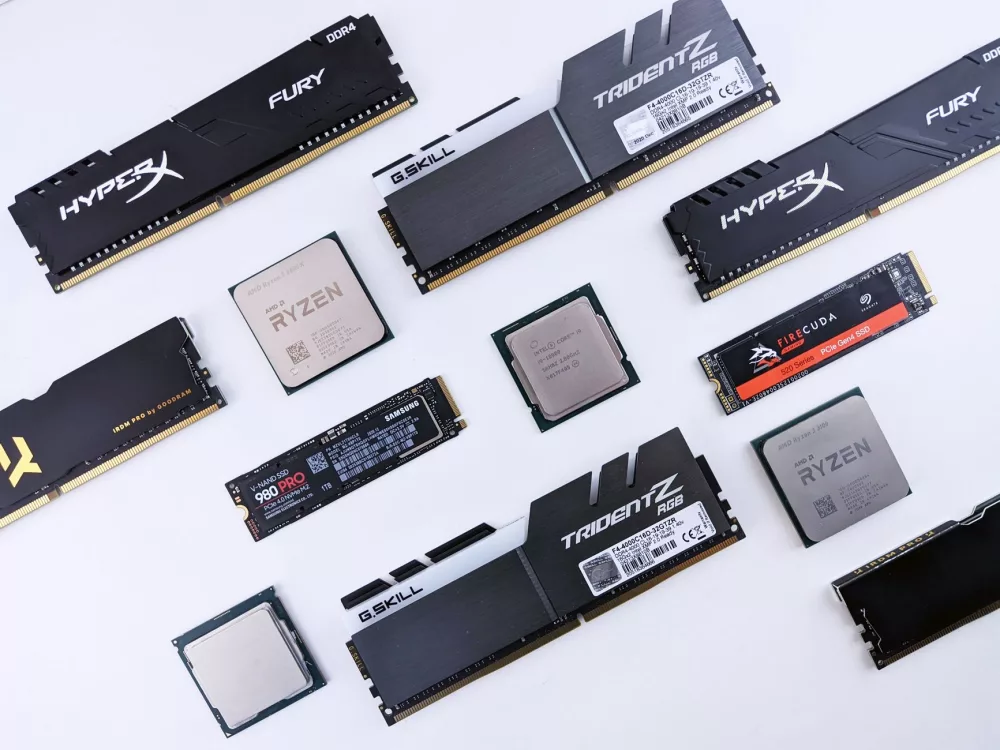
Hey there! If you're reading this, chances are you're experiencing the frustration of a sluggish computer. That once speedy machine now takes ages to boot up, apps stutter, and even simple web browsing feels like wading through treacle. Believe me, I've been there. The good news? You don't necessarily need to buy a brand new PC. A lot of the time, we can breathe new life into an aging system with some smart adjustments and, if needed, a few targeted upgrades. Let me walk you through how you can make your PC faster, bringing it back to its prime.
Understanding Why Your PC Slows Down
Before we dive into solutions, it's helpful to understand why your PC might be lagging. It's usually a combination of factors, including:
- Too many startup programs: Each program that launches with Windows eats up precious resources.
- Cluttered hard drive: Temporary files, old downloads, and a full drive can impact performance.
- Malware and viruses: These malicious programs often run in the background, consuming CPU and RAM.
- Outdated hardware: Sometimes, your components just can't keep up with modern software demands.
- Insufficient RAM: If your PC doesn't have enough memory, it'll constantly swap data to the slower hard drive.
- Poor cooling: Overheating can cause your CPU to 'throttle' its performance to prevent damage.
Now that we've got a grasp on the culprits, let's tackle them head-on!
Step 1: The Software Cleanup – Free & Effective Boosts
Tame Your Startup Programs
This is one of the easiest and most effective ways to instantly speed up your boot time. Many applications, when installed, automatically configure themselves to launch every time you start your PC. We don't want that!
Here’s how to rein them in:
- Windows 10/11: Right-click on your taskbar and select 'Task Manager' (or press Ctrl+Shift+Esc). Go to the 'Startup' tab. You'll see a list of applications and their 'Startup impact.' Right-click on any non-essential programs you don't need to launch immediately and choose 'Disable.' Things like Spotify, Steam, Adobe Creative Cloud apps, or printer utilities are often good candidates. Don't worry, disabling them here just means you'll have to open them manually when you need them.
Clear Out Temporary Files and Junk
Over time, your computer accumulates a ton of temporary files, old system logs, installer remnants, and browser caches. These can take up significant space and, in some cases, slow down access to other files.
My go-to method:
- Disk Cleanup Utility: Search for 'Disk Cleanup' in your Windows search bar and run it. Select your C: drive (or whichever drive Windows is installed on). It'll scan for deletable files. Click 'Clean up system files' for an even deeper scan. Check boxes for things like 'Temporary Internet Files,' 'Temporary files,' 'Recycle Bin,' and 'Delivery Optimization Files.' Be careful not to delete anything you're unsure about!
- Browser Cache: Every web browser has its own cache. Regularly clearing it can resolve issues and free up space. In most browsers, you can find this option under 'Settings' > 'Privacy and Security' > 'Clear browsing data.'
Uninstall Unnecessary Software
We've all got applications we installed ages ago and never touched again. They just sit there, sometimes running background processes or taking up valuable disk space. Get rid of 'em!
What I do:
- Go to 'Settings' > 'Apps' > 'Apps & features' in Windows. Sort by 'Install date' or 'Size' to easily spot large or old programs. If you don't use it, uninstall it. Simple as that. Just be cautious not to uninstall critical system drivers or software you actually need.
Scan for Malware and Viruses
Malicious software is a common cause of PC slowdowns. These nasty programs can run hidden processes, steal your resources, and just generally mess things up. You gotta be diligent about this.
My recommendation:
- Windows Security: Windows Defender (now called Windows Security) is pretty good these days. Make sure it's up to date and run a 'Full scan' regularly.
- Third-party scanners: For an extra layer of protection, consider a reputable anti-malware tool like Malwarebytes. Run a scan with it periodically to catch anything Windows Defender might miss.
Keep Your Operating System and Drivers Updated
Microsoft constantly releases updates for Windows that include performance improvements, bug fixes, and security patches. Similarly, graphics card manufacturers (like NVIDIA and AMD) release driver updates that can significantly boost game performance and system stability. It's really important to keep these current.
- Windows Updates: Go to 'Settings' > 'Windows Update' and click 'Check for updates.'
- Graphics Drivers: Visit the website of your graphics card manufacturer (NVIDIA, AMD, or Intel) and download the latest drivers for your specific model.
Step 2: The Hardware Boosts – When Software Isn't Enough
Sometimes, no amount of software tweaking will make a truly old or under-specced PC feel fast. That's when hardware upgrades come into play. These can offer the most dramatic performance improvements.
Upgrade to an SSD (Solid State Drive)
If you're still running Windows on a traditional Hard Disk Drive (HDD), this is, without a doubt, the single most impactful upgrade you can make. Seriously, it's a game-changer. SSDs are exponentially faster than HDDs, meaning your boot times will shrink from minutes to seconds, applications will load almost instantly, and your whole system will feel snappier. I recommend cloning your current Windows installation to an SSD for minimal hassle, or doing a fresh install if you're comfortable with that.
Add More RAM (Random Access Memory)
RAM is your computer's short-term memory. The more you have, the more applications and browser tabs you can have open simultaneously without your system slowing to a crawl. For general use and light gaming, 8GB is usually the minimum I'd suggest these days. For serious multitasking or modern gaming, 16GB is pretty much the sweet spot, and 32GB is great for heavy-duty tasks like video editing.
How to check: Open Task Manager (Ctrl+Shift+Esc), go to the 'Performance' tab, and click on 'Memory.' It'll show you how much RAM you have and how much is currently in use.
Consider a CPU/GPU Upgrade (for older systems or gaming)
If your PC is really ancient, or if you're a gamer finding that your frame rates are lagging, upgrading your CPU (processor) or GPU (graphics card) might be necessary. This is a more involved and often more expensive upgrade, and it usually means you'd need to consider motherboard compatibility and possibly a new power supply. This isn't usually the first step I'd take for general speed improvements, but for specific use cases, it's essential.
Improve Your Cooling
Believe it or not, an overheating PC will intentionally slow itself down (this is called 'thermal throttling') to prevent damage. If your fans are always running loud, or if your PC gets hot to the touch, poor cooling could be an issue. Things you can do:
- Clean out dust: Open your PC case (if you're comfortable) and use compressed air to blow dust out of your CPU cooler, GPU fans, and case fans. Dust is a terrible insulator!
- Check fan operation: Make sure all your case fans are spinning correctly.
- Consider better cooling: If you have an aftermarket CPU cooler, make sure it's properly seated. For very hot CPUs, an upgrade to a better air cooler or even an AIO liquid cooler can help.
Step 3: Ongoing Maintenance & Best Practices
Regular Reboots
This sounds simple, but a fresh reboot can work wonders. It clears your RAM, stops errant background processes, and refreshes system resources. I make it a habit to restart my PC at least once every few days, if not daily.
Don't Overload Your Desktop
While not a huge performance hog, a desktop cluttered with hundreds of icons and files can slightly impact performance and definitely makes it harder to find what you're looking for. Try to keep your desktop clean and use dedicated folders.
Clean Your Physical PC
Dust isn't just an aesthetic problem; it’s a performance killer. Dust buildup inside your computer acts like insulation, trapping heat and preventing your components from cooling effectively. This leads to higher temperatures and, you guessed it, thermal throttling.
- Grab a can of compressed air and, with your PC turned off and unplugged, give the inside a good blast. Pay special attention to fan blades, heatsinks, and vents. Do this outside, if possible, because it can get messy!
Making your PC faster isn't a one-and-done task; it's an ongoing process. By regularly cleaning up your software, keeping an eye on updates, and considering strategic hardware upgrades, you can enjoy a responsive and efficient computer for years to come. It truly is about staying on top of things, and a little bit of effort goes a long way!
Editorial Team
Senior staff writer & editor delivering comprehensive analysis, news reports, and detailed guides.